Skip to content

NinzaHost Blog

NinzaHost Blog

  • Home
  • Hosting
  • Contact Us
  1. Home
  2. /Cpanel
  3. /How to upload HTML/PHP file from cPanel?
How to upload HTMLPHP file from cPanel

How to upload HTML/PHP file from cPanel?

Upload File, Cpanel, PHP / June 12, 2021 / NinzaHost / 0

Do you want to upload html/php file? If yes then you can do that just after reading this complete article.

Let’s move on…

Upload HTML/PHP file using cPanel :

You just need to follow some simple steps as mentioned in this article.

Alright!

STEP 1 – Login To cPanel Account

  • Go to NinzaHost.
  • Login your Account.
  • Select your Active Product/Services.
  • Click on “Login to cPanel” under Action Tab.
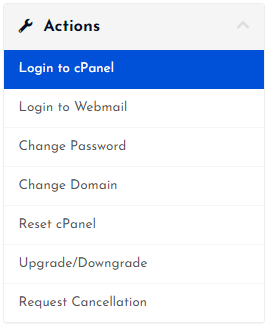
Login to cPanel

  • Then you will automatically redirected to your cPanel Account.

Or, If you have cPanel login details then you can easily login to your cPanel account by visiting yourdomain.com/cpanel.

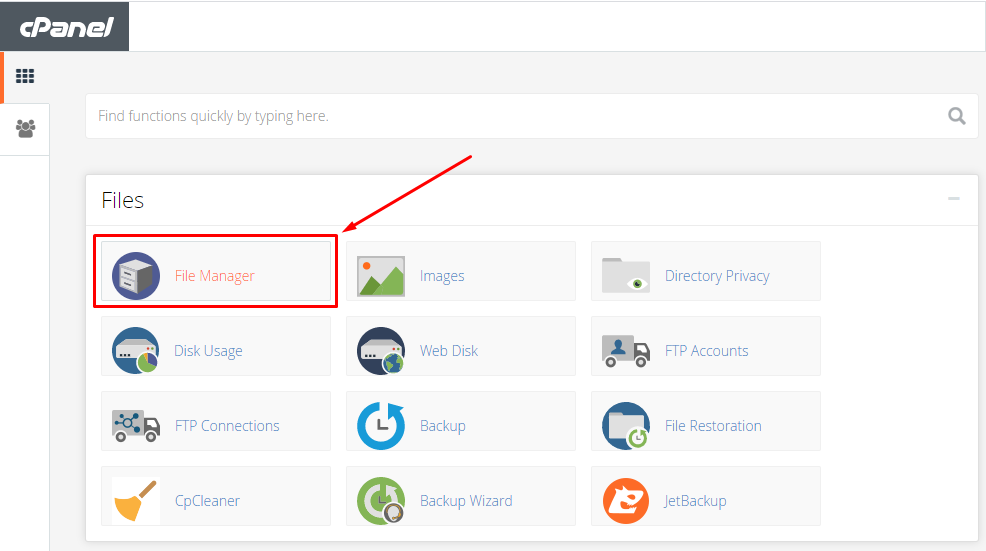
STEP 2 – Go To File Manager

  • Search “File Manager” in the search bar.
  • Or, Look at the first one that is it.
  • Click on the File Manager.

Click on File Manager

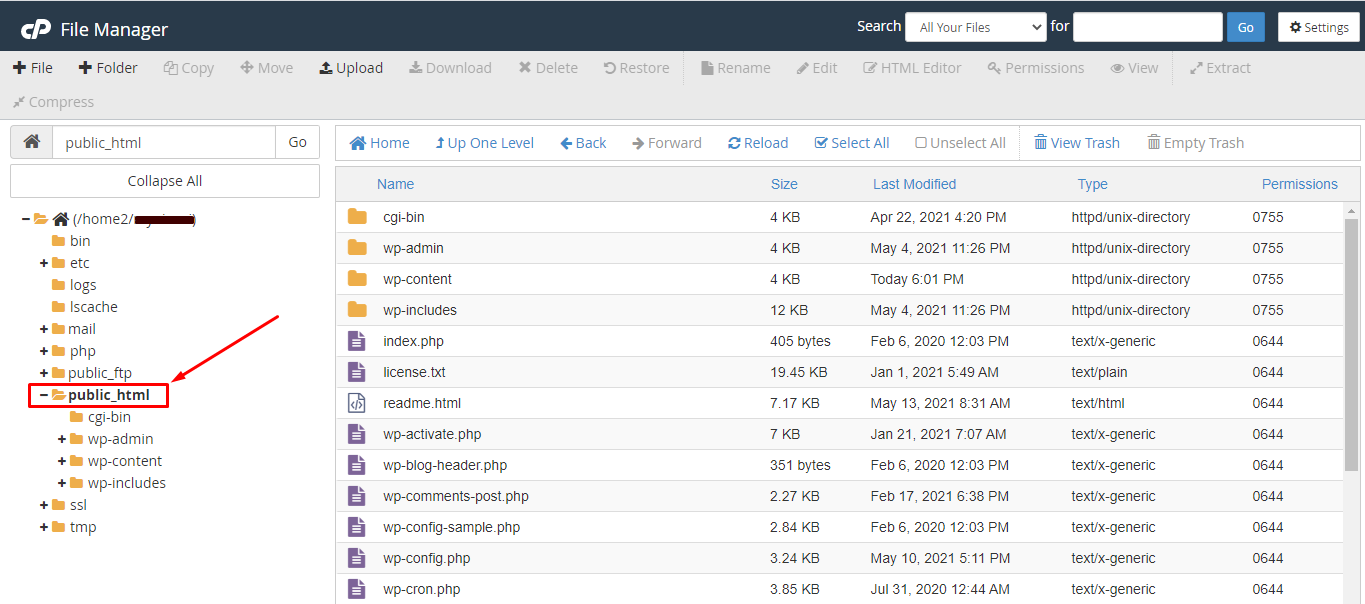
  • Now, Click on “public_html” folder.

Go to public_html

If you have installed WordPress then you will see some folders along with the files.

If you haven’t installed WP then it looks empty.

Note : You can also upload your html/php file under “public_html” directly but for testing we’ll create a TEST folder then upload under “public_html/test”.

*OPTIONAL*

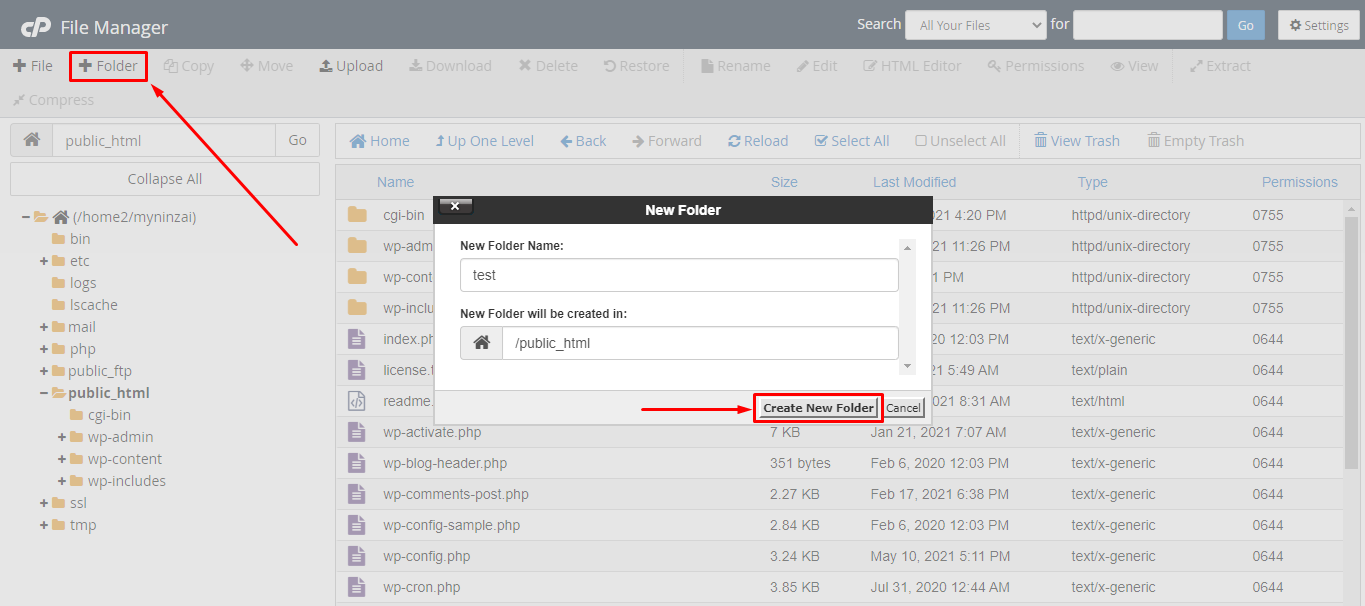
  • Click on “➕ Folder” button.
  • Name your folder. For e.g. ‘Test’
  • Hit on “Create New Folder” button.

Create New Folder

  • Great, your folder is created.

STEP 3 – Upload HTML/PHP File

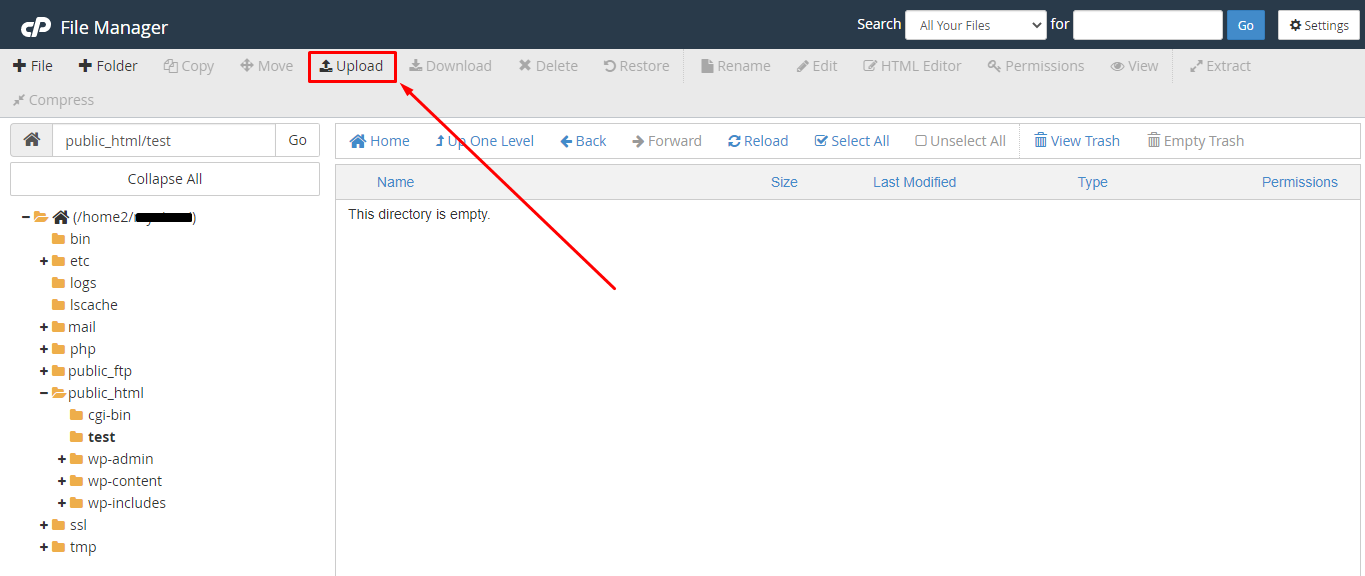
Open the folder where you want to upload the file either “public_html” or “public_html/test”.

  • Click on the “UPLOAD” button.

Click on Upload Button

  • You will be redirected to a new page.
  • Now, Click on “Select File”.
  • Or, Drag your file directly.

Click on Select File

  • Wait until the upload gets done.
  • Then, click on “Go Back” button.
  • Done! It’s time to check.

As you know, we’d created a TEST folder then uploaded my html file named “hello-world”.

So, here it is…
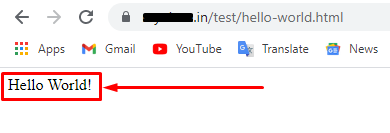
Upload Done

  • That’s it.

Hope your query regarding how to upload html/php file is now solved.

If you still have any issue then please don’t forget to comment down your problems or query.

Post Views: 704

how to upload html/php file?, upload html/php file, upload html/php file using cpanel

NinzaHost

Affordable Web Hosting Provider

How to request service cancellation in NinzaHost? How to install WordPress from Softaculous?

Related posts

What is a cPanel? The Ultimate Web Hosting Control Panel

What is a cPanel? The Ultimate Web Hosting Control Panel

How to Change Your cPanel Password from Client Area?

How to Change cPanel Password from Client Area?

How to Reset Your cPanel via Client Area?

How to Reset Your cPanel via Client Area?

How to Login to cPanel from Client Area?

How to Login to cPanel from Client Area?

How to manage DNS Records from cPanel?

How To restore WordPress Backup From Softaculous

Latest posts

How to Enable ID Protection for Your Domain

How to Enable ID Protection for Your Domain?

How to get your domain Authentication Code from Client Area

How to get your Domain Authentication Code from Client Area?

How to check and reply to your opened tickets

How to Check & Reply To Your Opened Tickets

How to renew your web hosting service?

How to renew your web hosting service?

How to View and Pay Your Invoice from Client Area?

How to Enable Transfer Lock for Your Domain?

How to Enable Transfer Lock for Your Domain?

Leave a Comment

Leave a Reply Cancel reply

Your email address will not be published. Required fields are marked *

SEARCH HERE

Recent Posts

  • How to Enable ID Protection for Your Domain?
  • How to get your Domain Authentication Code from Client Area?
  • How to Check & Reply To Your Opened Tickets
  • How to renew your web hosting service?
  • How to View and Pay Your Invoice from Client Area?

Copyright © 2026 NinzaHost

Search